Blog

Generating a requirements.txt file for your cPanel environment

Generating a requirements.txt file is the best way to ensure your cPanel environment matches your local development setup. There are two main ways to do it, depending on how you’ve managed your project so far.

Option 1: The “Quick & Dirty” Way

If you are working inside a virtual environment (which you should be!), you can generate the file automatically using pip.

  1. Open your terminal/command prompt in your project folder.
  2. Activate your virtual environment.
  3. Run the following command:Bashpip freeze > requirements.txt

NB: If you run this outside of a virtual environment, pip freeze will list every single Python package installed on your entire computer. This will make your cPanel deployment very bloated and likely cause errors.

Option 2: The “Clean” Way (Recommended)

If you haven’t been using a virtual environment, or if your environment is cluttered, use a tool called pipreqs. Unlike pip freeze, it looks at your code and only lists the packages you actually import.

  1. Install pipreqs: pip install pipreqs
  2. Run it in your project folder: pipreqs . --force
    • The . tells it to look in the current folder, and --force overwrites any existing file.

Posted in CPanel, Knowledgebase, Web and Email Hosting

Staff Writer

Deploying a Flask Application on CPanel

Deploying a Flask app on cPanel is slightly different from a standard VPS because cPanel uses Phusion Passenger to manage Python applications. This article is a step-by-step guide to getting a Flask application live.

1. Create the Python Application

First, you need to tell cPanel to set up a Python environment for your domain.

  1. Log in to cPanel and find the Software section.
  2. Click Setup Python App.
  3. Click Create Application.
  4. Configure the settings:
    • Python version: Select the latest (best is 3.11).
    • Application root: The folder name where your code will live (e.g., myapp).
    • Application URL: Select your domain and leave the path blank (for the homepage).
    • Application startup file: Set this to passenger_wsgi.py (cPanel expects this).
    • Application Entry point: Set this to application.
  5. Click Create. You will see a command at the top like source /home/user/virtualenv/myapp/.../activate. Copy this command.

2. Upload Your Flask Project

  1. Go to File Manager and enter your application root folder (myapp).
  2. Upload your project files (your app.py, static/, templates/, and requirements.txt). If you do not have a requirements.txt file, see this article on creating a requirements.txt file
  3. Crucial Step: Create a file named passenger_wsgi.py in the root folder. This file acts as the bridge between cPanel and Flask. Paste the following code:
import sys, os

# Add your project directory to the sys.path
sys.path.insert(0, os.path.dirname(__file__))

# Import your Flask app object. 
# If your file is app.py and your Flask instance is 'app', use:
from app import app as application

3. Install Dependencies

You need to install Flask and any other libraries into the virtual environment.

  1. Open the Terminal in cPanel (under the “Advanced” section).
  2. Paste the source command you copied in Step 1 and hit Enter. This enters your app’s virtual environment.
  3. Run the following commands:
pip install --upgrade pip pip install -r requirements.txt If you don't have a requirements file, just run: pip install flask

4. Final Configuration & Restart

  1. Go back to Setup Python App.
  2. Under Configuration files, type requirements.txt and click Add, then click Run Pip Install. (This is a GUI alternative to the Terminal step).
  3. Click the Restart button at the top of the page.
Posted in CPanel, Knowledgebase, Web and Email Hosting

Dzinaishe Mpini

Creating and Managing FTP Accounts in cPanel

File Transfer Protocol (FTP) plays a crucial role in website management by allowing users to upload, download, and manage files on a web server. Through cPanel, administrators can easily create and manage FTP accounts, enabling secure and controlled access to website files. FTP is commonly used by developers, designers, and system administrators to maintain websites, deploy applications, and perform backups. This article explains how FTP accounts are created and managed in cPanel, how they can be used with FileZilla, and why secure alternatives such as SFTP are recommended.

Creating an FTP Account

Creating FTP accounts in cPanel provides structured and permission-based access to server files. Using the FTP Accounts interface, administrators can define a username, assign a strong password, and specify a directory that the account can access. This directory restriction is an important security feature, as it limits users to only the folders they need to work with rather than granting full server access. cPanel also allows administrators to set storage quotas for FTP accounts, helping to control disk usage and prevent abuse.

Managing FTP Accounts (via FileZilla)

Managing FTP accounts in cPanel is straightforward and flexible. Administrators can update passwords, adjust directory access, or delete FTP accounts when they are no longer required. This is particularly useful when working with temporary collaborators or external developers, as access can be revoked immediately once a task is completed. Regular review of FTP accounts is considered a best practice to ensure that only active and authorised users can access server files.

Using the FTP Account

Once an FTP account has been created, it can be used with an FTP client such as FileZilla to transfer files between a local computer and the web server. FileZilla is a popular, user-friendly application that supports FTP, FTPS, and SFTP connections. To connect using FileZilla, users enter the server hostname, FTP username, password, and port number provided by the hosting environment. After a successful connection, the interface displays local files on one side and server files on the other, making it easy to upload, download, rename, or delete files.

Advantages of FileZilla

Using FileZilla improves efficiency and reduces errors compared to browser-based file managers, especially when handling large files or multiple uploads. It supports drag-and-drop functionality, transfer queues, and detailed logs that help users monitor file transfer progress. This makes it an essential tool for managing website content, updating applications, and maintaining backups in a controlled and reliable manner.

Conclusion

While traditional FTP is widely used, it is important to understand its security limitations. Standard FTP transfers data, including usernames and passwords, in plain text, making it vulnerable to interception. For this reason, secure alternatives should always be preferred. SFTP, which operates over SSH, encrypts all data during transfer and provides a much higher level of security. Most modern hosting environments and FTP clients, including FileZilla, support SFTP connections.

In conclusion, cPanel makes it easy to create and manage FTP accounts for structured access to server files, while tools like FileZilla provide a powerful and convenient way to work with those accounts. However, from a security perspective, SFTP is the recommended option for file transfers, as it protects sensitive credentials and data through encryption. By using SFTP instead of standard FTP, organizations can significantly improve the security of their website management processes while maintaining efficiency and control.

Posted in CPanel, FTP, Knowledgebase, Web and Email Hosting

Staff Writer

Security and Best Practices in Email Server Management (cPanel)

Email servers are a critical communication backbone for any organisation, making them a common target for spam, phishing, data breaches, and misuse. Proper security configuration and adherence to best practices are essential to protect sensitive information, maintain service reliability, and preserve domain reputation. cPanel provides a wide range of tools that, when used correctly, help administrators secure email services and ensure optimal performance. This article outlines key security considerations and best practices for managing email servers using cPanel.

Before Anything Else is Authentication

One of the most important aspects of email server security is strong authentication. All email accounts should use strong, unique passwords that combine uppercase and lowercase letters, numbers, and special characters. Weak passwords are a common entry point for attackers who attempt to gain unauthorized access to mailboxes and use them to send spam. cPanel makes it easy to reset passwords and enforce password strength, and administrators should encourage regular password updates, especially for shared or high-risk accounts such as info@ or support@ addresses.

Then Set Some Standards

Email authentication and deliverability settings play a vital role in both security and trust. Configuring standards such as SPF, DKIM, and DMARC through the Email Deliverability interface in cPanel helps verify that emails sent from your domain are legitimate. These mechanisms reduce the risk of email spoofing, protect recipients from phishing attempts, and improve the likelihood that outgoing messages are accepted by recipient mail servers instead of being flagged as spam. Properly configured authentication also protects your domain’s reputation over time.

Spam Filtering

Spam control is another core component of secure email server management. cPanel’s spam filtering tools, powered by Apache SpamAssassin™, help identify and manage unsolicited and potentially harmful emails. Administrators should fine-tune spam sensitivity levels to balance protection with usability, ensuring legitimate emails are not incorrectly filtered. Enabling features such as the Spam Box allows users to review flagged messages, while Auto-Delete can be used cautiously to remove obvious spam automatically. Effective spam management reduces exposure to phishing and malware threats.

Implement Access Control

Access control and account management are equally important. Email accounts that are no longer in use should be suspended or deleted promptly to minimize security risks. This is particularly important for accounts created for former employees or temporary projects. Limiting mailbox quotas also helps prevent abuse and protects server resources. Administrators should regularly review email accounts in cPanel to ensure that only necessary and authorized users have access.

Have Email Filters

Email filters and global email filters can be used as both organizational and security tools. By creating rules that automatically handle suspicious messages, administrators can reduce the likelihood of harmful emails reaching users’ inboxes. Filters can be configured to flag, redirect, or delete messages that match known spam patterns or risky keywords. When applied globally, these rules help enforce consistent email handling policies across the entire domain.

Monitor Activity

Monitoring email activity and delivery logs is a best practice that helps detect issues early. Tools such as Track Delivery in cPanel provide insight into how emails are processed and whether messages are being delivered, deferred, or rejected. Regular monitoring allows administrators to identify unusual patterns, such as sudden spikes in outgoing emails, which may indicate compromised accounts. Early detection helps prevent blacklisting and service disruptions.

Disk usage and mailbox maintenance also contribute to a secure and reliable email environment. Overloaded mailboxes can cause performance issues and increase the risk of data loss. The Email Disk Usage tool in cPanel allows administrators and users to identify old or large messages and remove them safely. Regular mailbox cleanup not only improves performance but also reduces the impact of potential security incidents.

User Training

Finally, user awareness and proper configuration practices should not be overlooked. Users should be educated on recognizing phishing emails, avoiding suspicious attachments, and reporting unusual activity. Administrators, on the other hand, should ensure that email routing is correctly configured and that the default address or catch-all feature is used carefully to avoid excessive spam intake. When combined, these practices create a layered approach to email security.

Conclusion

In conclusion, secure email server management requires a combination of strong authentication, proper configuration, regular monitoring, and informed users. cPanel offers powerful tools to support these goals, but their effectiveness depends on consistent and thoughtful use. By following established security best practices and leveraging cPanel’s built-in features, organizations can protect their email infrastructure, maintain trust with recipients, and ensure reliable communication.

Posted in CPanel, Knowledgebase, Web and Email Hosting

Staff Writer

Accessing Emails Using Email Clients

Once an email server has been properly configured for a domain, the next important step is understanding how to access and manage emails effectively. Email clients provide users with convenient ways to send, receive, organise, and store email messages across different devices. Whether you prefer working from a desktop computer, a mobile phone, or directly through a web browser, there are multiple options available to suit different needs and usage patterns. This article explains what email clients are and outlines the main ways users can access their emails.

Understanding Email Clients

An email client is a software application or service that connects to an email server to retrieve, send, and manage email messages. Email clients communicate with mail servers using standard protocols such as IMAP, POP3, and SMTP. IMAP allows emails to remain on the server and synchronize across multiple devices, while POP3 downloads emails to a single device. SMTP is responsible for sending outgoing emails. Understanding these basics helps users choose the right email client and configuration for their workflow, especially when accessing the same mailbox from multiple devices.

Desktop Email Clients

Desktop email clients are applications installed directly on a computer and are commonly used in office and professional environments. Popular examples include Microsoft Outlook, Mozilla Thunderbird, and Apple Mail. These clients provide advanced features such as offline access, powerful search tools, calendar and contact integration, and detailed email organization through folders and rules. Desktop clients are ideal for users who handle large volumes of email daily or require a more structured and productivity-focused email experience. Once configured, they offer stable and efficient access to email accounts hosted on your domain.

Mobile Email Clients

Mobile email clients allow users to access their emails on smartphones and tablets, ensuring communication remains uninterrupted while on the move. Most mobile devices come with built-in mail applications, such as Gmail on Android and Mail on iOS, which support custom domain email accounts. These apps offer real-time notifications, synchronization across devices, and simple account setup using IMAP and SMTP settings. Mobile email clients are especially useful for business owners and professionals who need to respond promptly to emails regardless of location.

Webmail Access

Webmail provides browser-based access to email accounts without requiring any software installation. Services such as Roundcube, Horde, or other webmail interfaces provided through hosting platforms allow users to log in securely from any device with an internet connection. Webmail is particularly convenient for temporary access, shared computers, or situations where installing an email client is not possible. While webmail interfaces may offer fewer advanced features compared to desktop clients, they remain a reliable and accessible option for everyday email communication.

Getting Started with Email Server Setup

Accessing emails through any client requires that the email server and domain email accounts are correctly set up. If you are unsure how to create email accounts, configure routing, manage spam filters, or handle deliverability settings in cPanel, it is important to start with the basics. A detailed guide on setting up and controlling your email server using cPanel is available and can be referenced here:

Conclusion

Email clients play a crucial role in how users interact with their email systems. Desktop clients offer powerful tools for productivity, mobile clients ensure constant connectivity, and webmail provides flexible access from anywhere. By understanding the different types of email clients and choosing the one that best fits your needs, you can manage your email communication efficiently and professionally. When combined with a properly configured email server, these tools ensure reliable, secure, and seamless email access across all platforms.

Posted in Knowledgebase, Web and Email Hosting

Dzinaishe Mpini

Demonstrating Email Server Setup and Control Using cPanel

Managing email professionally is a critical part of running a modern website or online business. cPanel, one of the most widely used web hosting control panels, provides a comprehensive and user-friendly interface for configuring, controlling, and optimising email services associated with your domain. Through cPanel, administrators gain fine-grained control over how emails are created, delivered, filtered, routed, and stored, ensuring reliable communication and improved deliverability. This article demonstrates the key email-related features available in cPanel and explains how each contributes to effective email server management.

Email Accounts

The Email Accounts feature in cPanel allows you to create and manage custom email addresses that are associated with your domain, such as info@yourdomain.com or support@yourdomain.com. Each email account can be assigned its own mailbox size, password, and security settings. Administrators can easily reset passwords, adjust storage limits, suspend accounts, or delete them when no longer needed. This functionality ensures that organizations can maintain professional communication channels while controlling storage usage and access rights for individual users.

Forwarders

Email forwarders enable you to automatically send a copy of incoming emails from one address to another. This is particularly useful when multiple people need to receive the same messages or when transitioning from one email address to another without missing important communications. For example, emails sent to sales@yourdomain.com can be forwarded to multiple team members or an external email service. Forwarders reduce the need to log into multiple inboxes and help streamline email workflows.

Email Routing

The Email Routing feature in cPanel determines how incoming emails for a domain are handled. Administrators can specify whether mail should be delivered locally to the server, routed to an external mail exchanger (such as Google Workspace or Microsoft 365), or automatically detected based on DNS configuration. Proper email routing is essential to prevent delivery issues such as bounced messages or duplicate emails. By correctly configuring routing, organisations ensure that emails reach the intended server without conflict.

Autoresponders

Autoresponders allow you to configure email accounts to send automated responses whenever a message is received. This feature is commonly used for out-of-office replies, customer support acknowledgements, or general informational messages. For instance, a support email address can automatically confirm receipt of a customer query while providing expected response times. Autoresponders can be scheduled with start and end times, making them especially useful during holidays, vacations, or temporary unavailability.

Default Address

The Default Address, often referred to as a catch-all address, handles emails sent to invalid or non-existent email addresses under your domain. Instead of rejecting these messages outright, cPanel can be configured to forward them to a specific mailbox, redirect them to another address, or discard them automatically. This feature is useful for capturing misaddressed emails, but it should be managed carefully to avoid unnecessary spam accumulation.

Mailing Lists

Mailing Lists in cPanel allow a single email address to distribute messages to multiple subscribers simultaneously. This is ideal for newsletters, announcements, internal communication, or community updates. Subscribers can be added manually or allowed to subscribe themselves, depending on configuration. Mailing lists simplify mass communication while maintaining centralized control over membership and message distribution.

Track Delivery

The Track Delivery tool provides visibility into how emails are processed and delivered by the server. Administrators can review an email’s delivery route, including whether it was successfully delivered, deferred, or rejected. This feature is particularly valuable when troubleshooting email delivery issues, as it helps identify configuration errors, spam filtering problems, or remote server rejections.

Email Filters and Global Email Filters

Email Filters and Global Email Filters allow administrators to define rules that automatically manage incoming messages based on criteria such as sender, subject line, or keywords. Filters can be applied to individual email accounts or globally across the entire domain. Actions may include moving messages to specific folders, marking them as read, forwarding them, or deleting them. This capability helps users organize their inboxes efficiently and reduce manual email management.

Email Deliverability

The Email Deliverability interface in cPanel focuses on improving the chances that outgoing emails reach recipients’ inboxes rather than being marked as spam. It assists with configuring essential email authentication standards such as SPF, DKIM, and DMARC. Properly configured deliverability settings build trust with receiving mail servers and significantly reduce the likelihood of emails being rejected or filtered into spam folders.

Address Importer

The Address Importer feature enables bulk creation of email accounts or forwarders using structured files. Administrators can upload Excel (.xls) or CSV (.csv) files containing email addresses and associated settings. This is especially useful for organizations onboarding multiple users at once, saving time and minimizing configuration errors. CSV files, being plain text, offer compatibility and ease of editing across different systems.

Spam Filters

Spam Filters in cPanel, powered by Apache SpamAssassin™, provide tools for identifying and managing unsolicited bulk email, commonly known as spam. Administrators can adjust spam sensitivity levels, enable the Spam Box to store suspected spam messages, or activate Auto-Delete to permanently remove spam before it reaches the inbox. Effective spam filtering protects users from phishing attempts, malware, and inbox clutter, while maintaining legitimate email flow.

Email Disk Usage

The Email Disk Usage utility helps administrators monitor and manage mailbox storage consumption. It allows users to identify large or old email messages and delete them to free up disk space. This feature is particularly important for maintaining server performance and preventing mailboxes from exceeding allocated storage limits. Regular cleanup using this tool ensures efficient use of hosting resources.

Conclusion

cPanel provides a robust and comprehensive suite of tools for email server setup and control. From creating professional email accounts to enhancing deliverability, filtering spam, and troubleshooting delivery issues, cPanel empowers administrators to manage email services efficiently and securely. By understanding and utilizing these features effectively, organizations can ensure reliable communication, improved security, and optimal email performance for their domains.

Posted in CPanel, Knowledgebase, Web and Email Hosting

Dzinaishe Mpini

Understanding Email Server Settings(IMAP, POP3, SMTP)

Email is one of the essential tools for communication especially in professional environments. Behind every email sent or received are specific server settings that make the process possible. 3 most common terms seen in email setup are IMAP, POP3, and SMTP. There 3 are protocols, basically rules that govern transmission of emails. They define  how messages are sent, received and stored.

IMAP – Internet Message Access Protocol

IMAP allows you to access your emails directly from the mail server. Instead of downloading emails to a single device, IMAP keeps them stored on the server and syncs them across all your devices.

    Advantages of IMAP

    • Actions are synchronized across all devices
    • Emails are accessible from multiple devices.
    • Emails are backed up on the server, if your device crashes your emails are still there.

    POP3 – Post Office Protocol

    POP3 downloads emails from the server to your local devices and typically deletes them from the server.

    Advantages of POP3

    • Emails are stored on your local device, you can access them without internet connection
    • Preserves server space

    SMTP – Simple Mail Transfer Protocol

    SMTP is the protocol responsible for sending emails. It handles outgoing mail and ensures messages are delivered to the recipient’s mail server. When an email is sent, SMTP transfers it from your email client to the recipient’s server. From there, IMAP or POP3 handles how the recipient retrieves it. Understanding these protocols, how they work helps you to correctly set up email accounts, troubleshoot issues and choose the best option for your needs(personal or professional)

    In a Nutshell

    IMAP and POP3 allows you to receive email messages whilst SMTP allows you to send email messages.

      Choosing the right Email Protocol between POP3 and IMAP

      Choose IMAP if you want flexibility, syncing, and access from multiple devices.

      Choose POP3 if you prefer storing emails locally and using one device.

      SMTP is always required for sending emails, regardless of which receiving protocol you use.

      Posted in Knowledgebase, Web and Email Hosting

      Staff Writer

      Difference Between Web Development and Software Development: A Guide for Non-Technical People

      Most of our clients and potential clients seem to get confused when we say we offer web development services and again say we offer software development services. We understand why! In today’s digital world, the terms often get used interchangeably, making it hard to see where one begins and the other ends. We have therefore decided to pen down something highlighting the difference between the two in simple terms, without all the confusing tech-speak.

      Think of it this way: all web development is software development, but not all software development is web development. Software development is the big umbrella, and web development is a specific type of software that lives under it.

      Hosting

      This refers to where your application “lives.”

      Web Development: Imagine your website or web application as a house. For people to visit it, that house needs to be built on a piece of land that everyone can access – that’s your web server. This means your website is stored on a special computer (the server) that is always connected to the internet. When you type a website address into your browser, your computer goes to that server to get the information and display the website to you.

      Software Development: For other types of software, the “house” might be built directly on your own property. For instance, a desktop application like Microsoft Word is installed and runs directly on your computer. Your phone apps also live directly on your phone. They don’t necessarily need a remote server to function every time you use them.

      Platform

      This is about where the software is designed to run.

      Web Development: Web applications are specifically designed to run inside a web browser. Whether you’re using Chrome, Safari, Firefox, or Edge, the application functions within that browser window. This is why a website looks generally similar regardless of whether you’re viewing it on a Windows PC, a Mac, or even a Linux machine, as long as you have a compatible browser.

      Software Development: This is much broader. Software can be built to run on many different “platforms.” This includes desktop computers (like Windows, macOS, or Linux), mobile phones (like iOS for iPhones or Android for other smartphones), or even specialized devices like smartwatches, smart TVs, or the navigation system in your car. Each platform might require a different approach and specific tools.

      Updates

      How does the software get better or fixed when something goes wrong?

      Web Development: Updates for web applications are often seamless. When a web developer makes a change or fixes a bug, they update the code on the central web server. The next time you visit the website, you automatically see the latest version without having to do anything yourself. It’s like changing the furniture in a display home – everyone who visits next sees the new layout.

      Software Development: For software that you install on your device, updates work differently. If you have an application installed on your computer or phone, you usually need to download and install a new version when an update is available. Think about how your phone apps frequently ask you to update them, or how your computer’s operating system periodically releases new versions you need to install.

      Connectivity

      Does it need the internet to work?

      Web Development: Generally, yes. Because web applications live on a remote server, they typically require an active internet connection to function. Without it, your browser can’t “talk” to the server to get the website’s information. Some web apps have limited offline capabilities, but their core functionality relies on being connected.

      Software Development: Many types of software can work perfectly fine without an internet connection. For example, you can write a document in Microsoft Word, play a single-player game, or edit photos in a program like Photoshop without being online. Mobile apps also often have significant offline functionality, even if they connect to the internet for specific features.

      Scope of Work

      What kind of things do these developers build?

      Web Development: Web developers build all the things you interact with on the internet through your browser. This includes simple static websites (like an online brochure), interactive web applications (like online banking, social media platforms, or e-commerce stores), and even the “backend” systems that power these websites (like databases and servers that store information and deliver it to your browser).

      Software Development: This field is vast. Software developers create almost anything digital you can imagine. This includes the operating system that runs your computer or phone, all the applications you install on those devices (like games, productivity tools, video editors), specialized software for businesses (like inventory management systems), and even the tiny bits of code that make physical devices like smart appliances or medical equipment function.

      Languages: The Tech Stack

      These are the “ingredients” and “tools” developers use to build things.

      Web Development: Web developers primarily use a specific set of languages. For what you see (the “frontend”), they use HTML (HyperText Markup Language – for the structure of the page, like headings and paragraphs), CSS (Cascading Style Sheets – for the look and feel, like colors, fonts, and layout), and JavaScript (for interactivity, like animations, buttons that do things, and updating content without reloading the page). For the unseen parts (the “backend” server logic), they might use languages like Python, PHP, Ruby, or Node.js.

      Software Development: The range of languages here is much wider. Depending on what they are building, software developers might use languages like Java (for Android apps, enterprise systems), Swift (for iPhone apps), C++ (for high-performance applications like games or operating system components), C# (for Windows applications), or Python (for many things including desktop apps, data analysis, and artificial intelligence). The choice of language depends heavily on the specific platform and requirements of the software.


      At Grey Square, we understand that every business has unique digital needs. Whether you’re looking to build an engaging online presence with a custom website or develop a powerful application to streamline your operations, we offer both specialized web development and comprehensive software development services. Our team is equipped to guide you through the process, ensuring you get the right digital solution for your business goals.

      Posted in Blog, Knowledgebase, Opinion, Web Design and Development

      Dzinaishe Mpini

      GSQ Invoicing System V5.0.0 is Here

      Grey Square is pleased to announce the release of GSQ Invoicing System Version 5.0.0, a significant update that introduces new capabilities designed to improve financial management, operational efficiency, and system flexibility for businesses using the platform. The update continues our commitment to developing practical digital tools that simplify everyday business processes and help organizations maintain accurate financial records while adapting to modern operational needs. The GSQ Invoicing System is designed to help businesses easily generate invoices, track payments, and manage their billing processes in a structured and reliable way. (greysquare.co.zw)

      New Feature – Client Statement

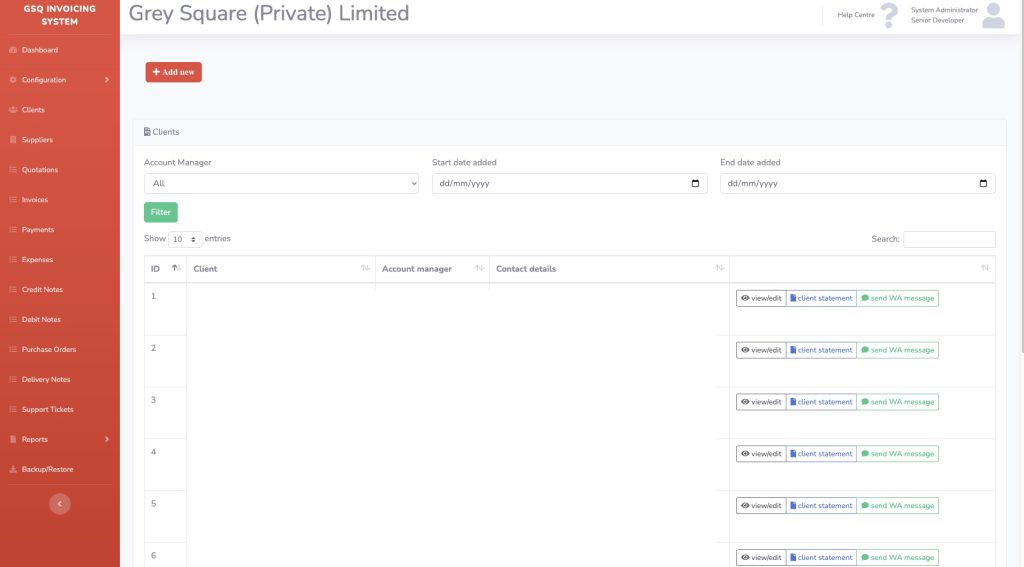
      Businesses can now generate consolidated statements for each client, providing a clear overview of all invoices, payments, and outstanding balances over a selected period. This functionality makes it easier for organizations to communicate account status with their clients and improves transparency in financial interactions. Instead of reviewing individual invoices separately, businesses can now provide a summarized statement that reflects the entire transaction history with a customer.

      Client Management Feature

      New Feature – Items and Departments Configuration

      Businesses can now define items or services within the system and associate them with departments. This feature is particularly useful for organizations with multiple service lines or operational divisions, as it enables clearer categorization of services and more structured reporting when generating invoices or financial summaries.

      New Feature – Tax Configuration module

      Another important addition is the , which provides greater flexibility when managing taxation within the system. Businesses can now define different tax settings that apply to specific products, services, or invoices. This configuration capability ensures that tax calculations are handled consistently and can easily adapt to different regulatory or business requirements.

      New Feature – Recurring Invoices

      To further enhance automation within the invoicing process, the system now supports Recurring Invoices. This feature allows businesses to automatically generate invoices at scheduled intervals for services that are billed regularly, such as subscriptions, maintenance services, or retainers. By automating recurring billing, businesses can reduce manual work, minimize errors, and ensure that invoices are issued consistently and on time.

      New Update – Merged Proforma and Tax Invoices

      In addition to these new capabilities, Version 5.0.0 simplifies the invoicing workflow by merging Proforma Invoices and Tax Invoices into a unified process. This change streamlines document management within the system and reduces complexity when transitioning from quotation to billing. Businesses can now manage these processes more efficiently without switching between different document types.

      New Feature – Backup and Restore Functionality

      A critical addition in this release is the Backup and Restore functionality, which enhances data security and system reliability. Businesses can now easily create backups of their data and restore the system when necessary. This feature provides peace of mind by ensuring that financial records and transaction data remain protected against unexpected system issues or data loss.

      Other Minor Changes

      Alongside the major features, several minor improvements have also been implemented to enhance system usability and maintain consistency across modules. The permissions system has been updated to align with newly introduced modules and features, ensuring that administrators can manage user access more effectively. Additionally, the receipt design has been improved, resulting in a cleaner and more professional appearance when receipts are issued to customers.

      Overall, GSQ Invoicing System Version 5.0.0 represents a meaningful step forward in improving the functionality, automation, and reliability of the platform. By introducing better configuration options, automation capabilities, and data protection features, this update helps businesses manage their invoicing processes more efficiently while maintaining clear financial records and improving communication with their clients.

      Posted in Blog, GSQ Invoicing System

      Dzinaishe Mpini

      Control Panels in Servers 

      A control panel is a “Dashboard” or “Remote Control” for a server. Without a control panel, managing a website requires typing complex code into a black-and-white terminal (Command Line Interface).

      Core Functions

      • File Management: Uploading, deleting, or editing website files (like an online version of “My Computer”).   
      • Database Management: Usually via phpMyAdmin. This is where the website’s “memory” (posts, user data, settings) is stored.
      • Email Management: Creating new addresses (e.g., intern@greysquare.com), setting passwords, and configuring spam filters. 
      • Domain & DNS: Adding subdomains (like test.greysquare.com) or adjusting where the domain points.  
      • One-Click Installers (Softaculous): Allows them to install WordPress, Joomla, or Magento in 30 seconds without touching a database.
      • Cron Jobs: Scheduling the server to do a task automatically (e.g., “Delete old logs every Sunday at midnight”).
      • Backup Wizards: The most important button in the building. They should know how to download a “Full Account Backup” before making any changes.
      • IP Blocker: A security tool to manually ban a specific IP address if they notice a “bot” attacking the site.  

      Common Control Panels

      Control PanelBest ForKey Feature
      cPanelLinux / Shared HostingThe industry standard; very beginner-friendly and widely documented.
      PleskWindows & LinuxExcellent for agencies; has a “WordPress Toolkit” that automates updates.
      DirectAdminSpeed & BudgetLightweight and fast; often used as a more affordable alternative to cPanel.
      CyberPanelPerformanceBuilt on LiteSpeed; popular for making WordPress sites load extremely fast.
      Cloud PanelsAWS / Google CloudSpecialized panels (like CloudPanel) designed for high-end cloud infrastructure.
      Posted in CPanel, Knowledgebase, Web and Email Hosting

      Dzinaishe Mpini